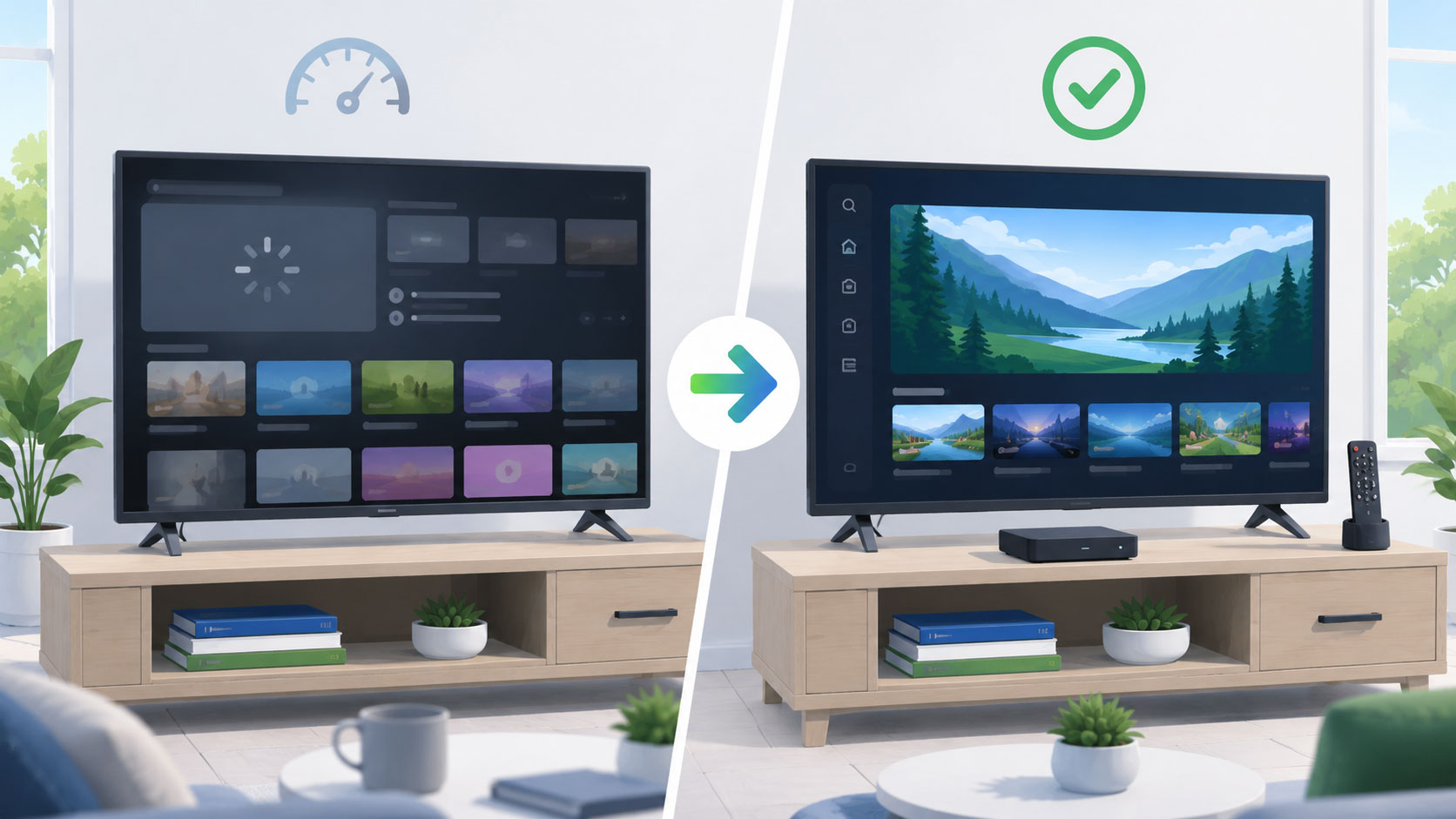
Why a Smart TV can start to feel sluggish
A television may continue to display an excellent picture even after its built-in app platform feels dated. Over time, app requirements, interface updates and limited television hardware can make menus or streaming apps feel slower than they once did.
A separate streaming device can be an economical way to refresh the software experience while keeping a television screen that still works well.
- Slower app launches
- Delayed remote response
- Apps that stop receiving meaningful updates
- Limited storage for additional apps
- Different interfaces in different rooms
- A cluttered or difficult-to-navigate home screen
How much storage do you need on a streaming device?
Storage is easy to overlook when choosing a streaming device. Most streaming apps are not huge by themselves, but available space can fill up as you add live TV apps, sports apps, free streaming apps, music apps, screensavers, games, system updates and cached app data.
If you only use a handful of major apps, an 8GB streaming device may be enough. But if your household likes trying lots of services - Netflix, Hulu, Disney+, Max, Peacock, Paramount+, Prime Video, YouTube, ESPN, league apps, free TV apps and more - choosing a device with 16GB, 32GB or more can help avoid storage warnings later.
Streaming device speed and storage ranking
Ordered by CableQuit performance tier, then storage headroom. Tiers compare published hardware and manufacturer positioning, not a single cross-platform benchmark.
| Rank group | Device | Performance basis | Published storage |
|---|---|---|---|
| 1 - Top tier | Apple TV 4K | A15 Bionic; strong app and interface headroom | 64GB or 128GB |
| 1 - Top tier | Fire TV Cube (3rd Gen) | Amazon's fastest Fire TV player; octa-core processor | 16GB |
| 1 - Top tier | Roku Ultra (2024) | Roku's fastest player; 2GB RAM | Not published by Roku |
| 2 - Fast | Google TV Streamer | 22% faster processor than Chromecast with Google TV | 32GB |
| 2 - Fast | NVIDIA Shield TV Pro | Tegra X1+; geared toward advanced media use | 16GB |
| 2 - Fast | Fire TV Stick 4K Max (2nd Gen) | 2.0GHz quad-core processor | 16GB |
| 3 - Everyday | Roku Streaming Stick 4K | ARM Cortex-A55 with 1GB RAM | Not published by Roku |
Performance tiers are directional and are not benchmark scores. Published storage is not the same as usable space because system files, updates, and cache use part of it.
Why 8GB devices can feel cramped
An 8GB streaming device can be perfectly fine for simple setups, but it leaves less headroom. After the operating system, updates and cached app data, the usable space can be much lower than the number on the spec sheet. Users who install a lot of streaming apps may eventually need to delete apps, clear cache or upgrade to a device with more storage.
Recommended streaming devices
There is no single best streaming device for every household. Your best fit depends on budget, preferred platform, remote features, wired-network needs, picture and audio formats, smart-home integration and app compatibility.
Prices and specifications change. Confirm current product details before buying.
CableQuit device test scenario: keep the TV or add a streamer?
| Question | Keep the Smart TV | Compare a streamer |
|---|---|---|
| Can everyone open the main apps quickly? | Yes, with consistent response. | No, launches or navigation are routinely slow. |
| Are all must-have apps supported? | Yes, and they still receive updates. | One or more essential apps are missing, unstable, or unsupported. |
| Is the interface consistent across rooms? | Consistency is not important or the TVs share a platform. | Different TV menus create confusion for the household. |
| Is storage becoming a problem? | No warnings or repeated app removal. | Updates fail or apps must be deleted frequently. |
| Does the remote fit normal use? | The current remote handles power, volume, and navigation well. | A different remote or ecosystem would reduce daily friction. |
Scenario reviewed August 20, 2026. If the Smart TV passes most rows, buying another device may not add meaningful value.
Compare ownership cost, not only purchase price
A low-cost stick can be the right choice for a lightly used television, while a main living-room television may justify more storage, faster navigation, or wired-network support. The useful cost is the purchase price spread across the years you expect to use it, plus the cost of replacing a device that becomes frustrating too soon.
Also count setup consistency. Buying the same platform for several rooms can reduce support calls within the household, but replacing working devices merely to make every room identical may not be worth it. Start with the television that causes the most friction and confirm the platform before expanding it elsewhere.
Streaming device
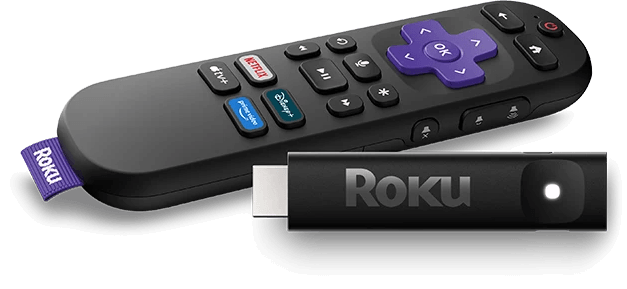
Roku Streaming Stick 4K
Best for: A simple upgrade for most TV setups
Easy setup and a familiar streaming-device experience for common cord-cutting apps.
Tradeoff: Users invested in another device ecosystem may prefer that platform.
Storage: Not published by Roku
Streaming device
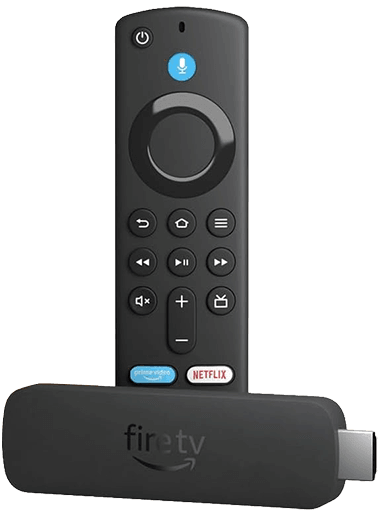
Amazon Fire TV Stick 4K Max
Best for: Fire TV households
May fit households already comfortable with the Fire TV interface and ecosystem.
Tradeoff: The home-screen experience may feel more Amazon-centered than some users prefer.
Storage: 16GB
Streaming device
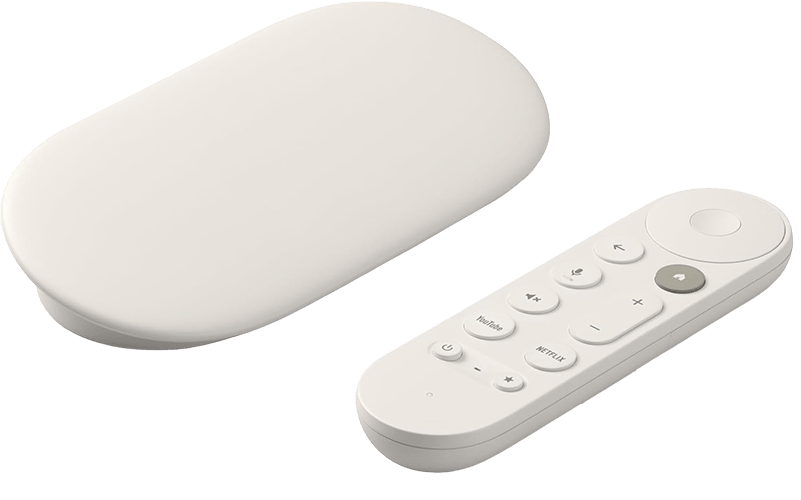
Google TV Streamer 4K
Best for: Google TV households
May suit viewers who prefer the Google TV interface and Google ecosystem.
Tradeoff: Users seeking the simplest app-first experience may prefer another platform.
Storage: 32GB
Streaming device
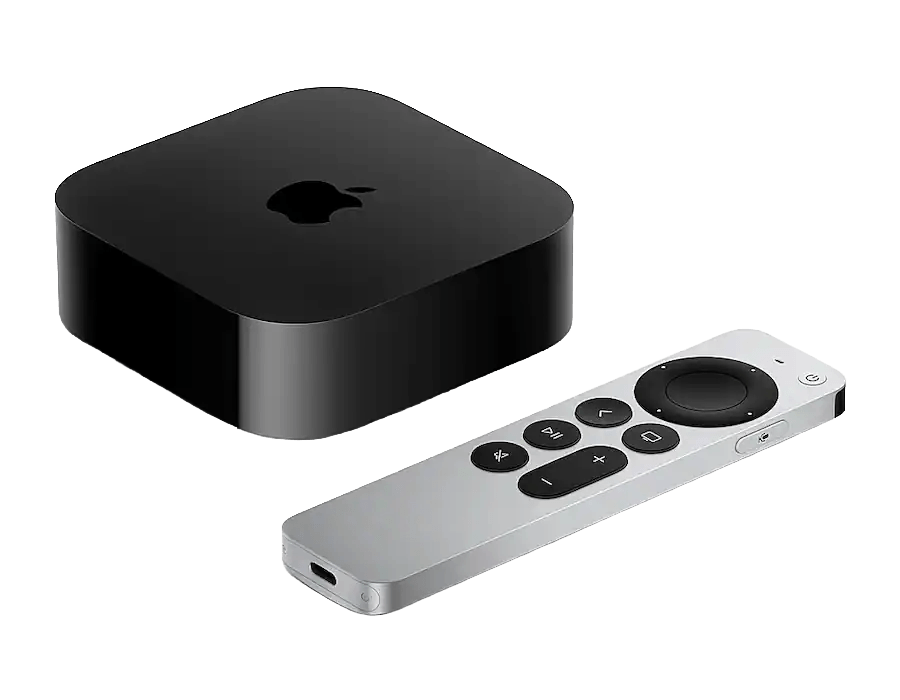
Apple TV 4K
Best for: Apple households
Apple TV 4K is a strong fit for Apple households and may appeal to viewers who want more local storage space for apps and downloads.
Tradeoff: Typically a higher-cost option than basic streaming sticks.
Storage: 64GB or 128GB
Streaming device
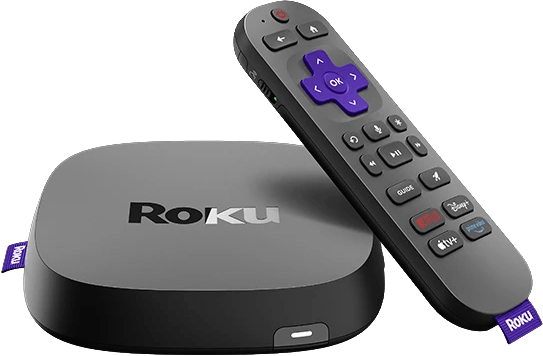
Roku Ultra
Best for: A higher-end Roku setup
A fuller Roku hardware setup for viewers who prefer the Roku ecosystem.
Tradeoff: May be more hardware than a secondary TV needs.
Storage: Not published by Roku
Streaming device
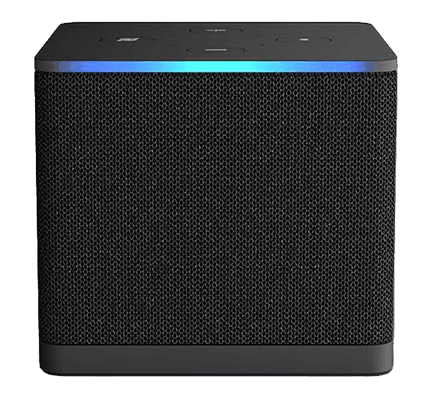
Amazon Fire TV Cube
Best for: A higher-end Fire TV setup
A higher-end Fire TV option for households that prefer that interface.
Tradeoff: May be unnecessary for households that only need basic app streaming.
Storage: 16GB
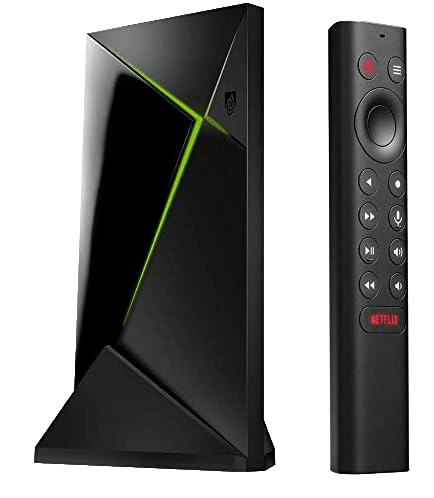
Streaming device
NVIDIA Shield TV Pro
Best for: Advanced streaming-device users
Worth comparing for viewers specifically looking at a more advanced Android TV-style setup.
Tradeoff: May be unnecessarily specialized for ordinary streaming-app use.
Storage: 16GB
Which streaming-device category fits you?
| User type | Device family to compare first |
|---|---|
| Lowest-cost upgrade for an older television | Roku or Fire TV streaming stick |
| Premium simple living-room setup | Roku Ultra or Apple TV 4K |
| Apple household | Apple TV 4K |
| Google-oriented household | Google TV Streamer or verified Google TV device |
| Alexa-oriented household | Fire TV device |
| Advanced home-media user | NVIDIA Shield TV Pro |
Before you buy a streaming device
- Confirm your television has an available HDMI port.
- Check whether your television supports picture formats you care about, such as 4K or HDR.
- Decide whether you need wired Ethernet.
- Choose the interface ecosystem you prefer: Roku, Apple, Google or Amazon.
- Confirm support for your must-have streaming apps.
- Confirm support for any specialty app or accessory you plan to use.
- Verify that the product is a currently supported model.